Create with Imagegen

Make your next visual with imagegen free

With imagegen free, start with a clear description instead of a blank canvas. Describe the subject, setting, style, and format you need, then inspect the result before using it.

Review the result before using it
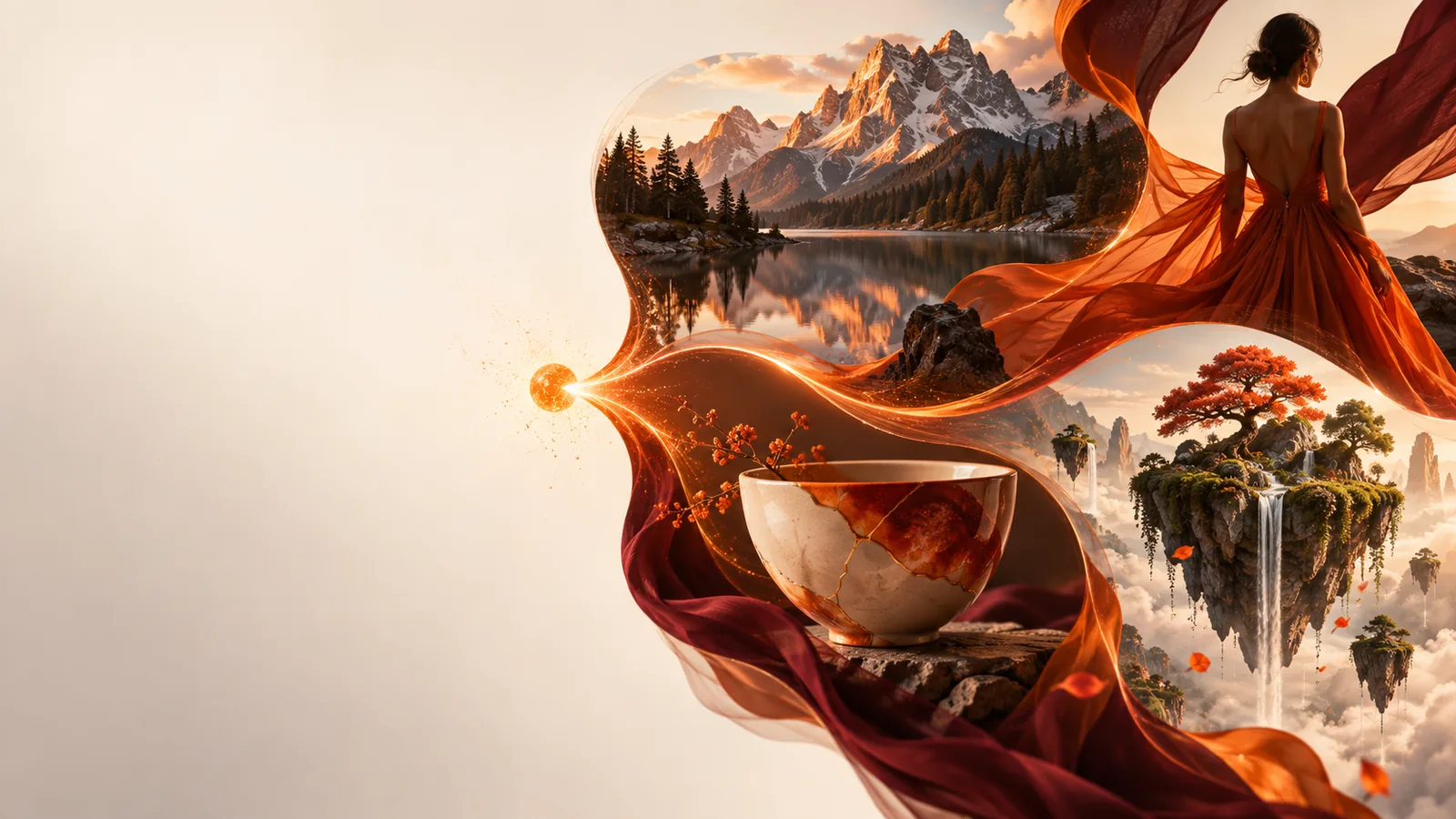
Example imagery showing the kinds of visuals that can begin with a written prompt

Three ways to put a prompt to work

Imagegen is most useful when the intended audience and use are clear. These examples show how to turn a broad idea into a prompt you can evaluate.

Small-business owner

You need a concept image for a café announcement but have no photograph ready. Describe the room, time of day, and space needed for later text.

A draft visual to assess for mood and composition, rather than a claim that the pictured place or products are real.

ai image generator from text free

Illustrator

You have a rough reference and want to explore a different atmosphere while keeping the central subject recognizable.

A direction to compare against your reference; inspect details before treating any result as finished artwork.

ai image generator from image

Teacher

You want a friendly visual for a lesson and need ideas for describing the scene without naming a specific artist.

A reusable prompt structure that identifies the subject, age-appropriate tone, and uncluttered layout.

image generation prompt examples

Step-by-step: from idea to usable draft

You do not need a long prompt. Give Imagegen enough direction to make the first result worth reviewing, then change one important detail at a time.

Name the subject and purpose

Start with what must appear and where the image will be used. For example, request a coffee shop interior for a wide announcement graphic rather than simply asking for a nice café.

Add visible constraints

Specify lighting, viewpoint, palette, and whether you need empty space for text. If a logo or readable sign would be misleading, ask for neither.

Review and revise

Check the focal point, small details, and suitability for your audience. Revise the prompt to address the biggest problem instead of adding a long list of unrelated instructions.

What a second prompt can clarify

This comparison is a writing guide, not a promise that every output will follow every instruction. More specific language gives you a clearer result to judge.

Broad first prompt Focused revision
1

Subject

Broad first prompt

A coffee shop

Focused revision

A small neighborhood coffee shop interior

2

Lighting

Broad first prompt

Unspecified

Focused revision

Warm sunrise light through the front windows

3

Viewpoint

Broad first prompt

Unspecified

Focused revision

Eye-level view toward the counter

4

Composition

Broad first prompt

Unspecified

Focused revision

Landscape frame with open space on the left

5

Style

Broad first prompt

Unspecified

Focused revision

Natural colors and a calm editorial feel

6

Text and branding

Broad first prompt

Unspecified

Focused revision

No visible logos or readable signs

Limits and edges to check

A generated draft can save effort during exploration, but it is not a substitute for checking accuracy, rights, or the requirements of the place you plan to publish it.

Not a source of factual proof

Imagegen may produce a convincing scene that does not depict a real person, product, or location. Do not present a generated image as documentary evidence.

WorkaroundUse your own verified photograph when an authentic record matters.

Not reliable for exact text

Letters, labels, and small interface details may be distorted or inconsistent. A prompt cannot guarantee publication-ready typography.

WorkaroundAdd essential wording separately in your editing tool and proofread it there.

Not an automatic rights check

A result still needs human review for recognizable people, brands, sensitive content, and the rules of its intended use.

WorkaroundAvoid unnecessary identifying details and check the applicable usage terms before publishing.

Turn one clear idea into a draft

Try a focused image prompt

Start with a subject and a purpose, then add the lighting and composition that matter most. Imagegen gives you a practical place to begin exploring; your final check determines whether the result fits the job.

  • Describe the scene in everyday language
  • Revise the most important detail
  • Inspect the result before publishing

Imagegen free questions

Yes. Write what should appear in the image, then add useful details such as setting, lighting, and orientation. Begin simply and revise after seeing what the first result gets right or wrong.

No. A short, concrete sentence is a better starting point than waiting for perfect wording. If the result misses the mark, change the subject description or one visual constraint and try again.

Include the main subject, its surroundings, the desired look, and the format you need. Mention exclusions only when they matter, such as avoiding logos or leaving clear space for a headline.

Review it first, especially if it will be seen by other people. Look for inaccurate details, distorted text, recognizable identities, and anything that could misrepresent a real product or place.

Do not assume they are. Available features and usage terms can change, so check the information shown by the tool when you use it. Keep a copy of your prompt if you want to recreate or refine the idea later.

Create an image
Create an image